
This article will guide you through creating a custom survey, which will give you a fully customized experience for all your needs in terms of creating a survey.
Contents
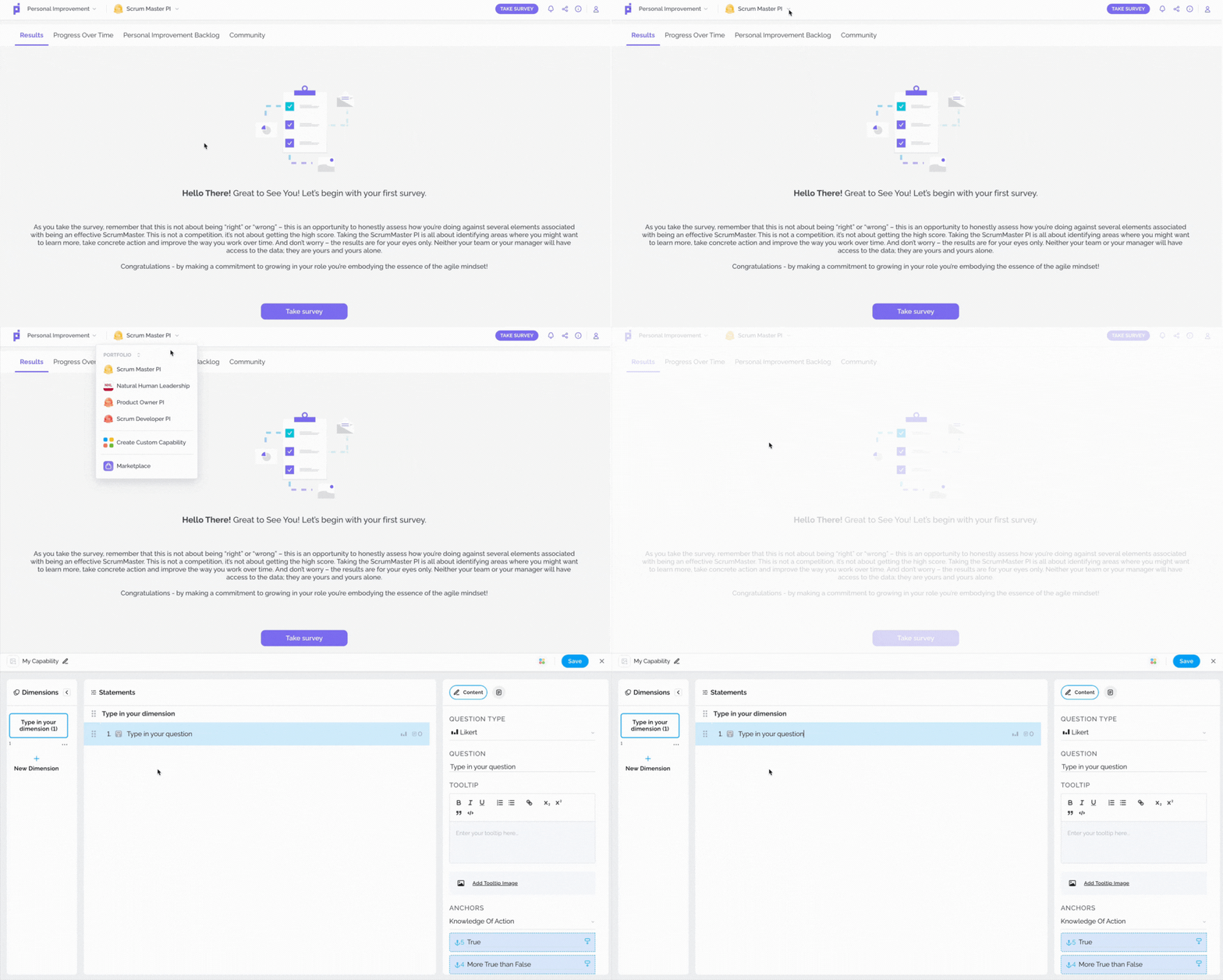
Navigating to the Custom Capability Screen
To start creating your custom capability, simply:
- Click on the dropdown menu
- Select the Create Custom Capability option
In the short video below we show you how to navigate to the custom capability screen
Dimensions
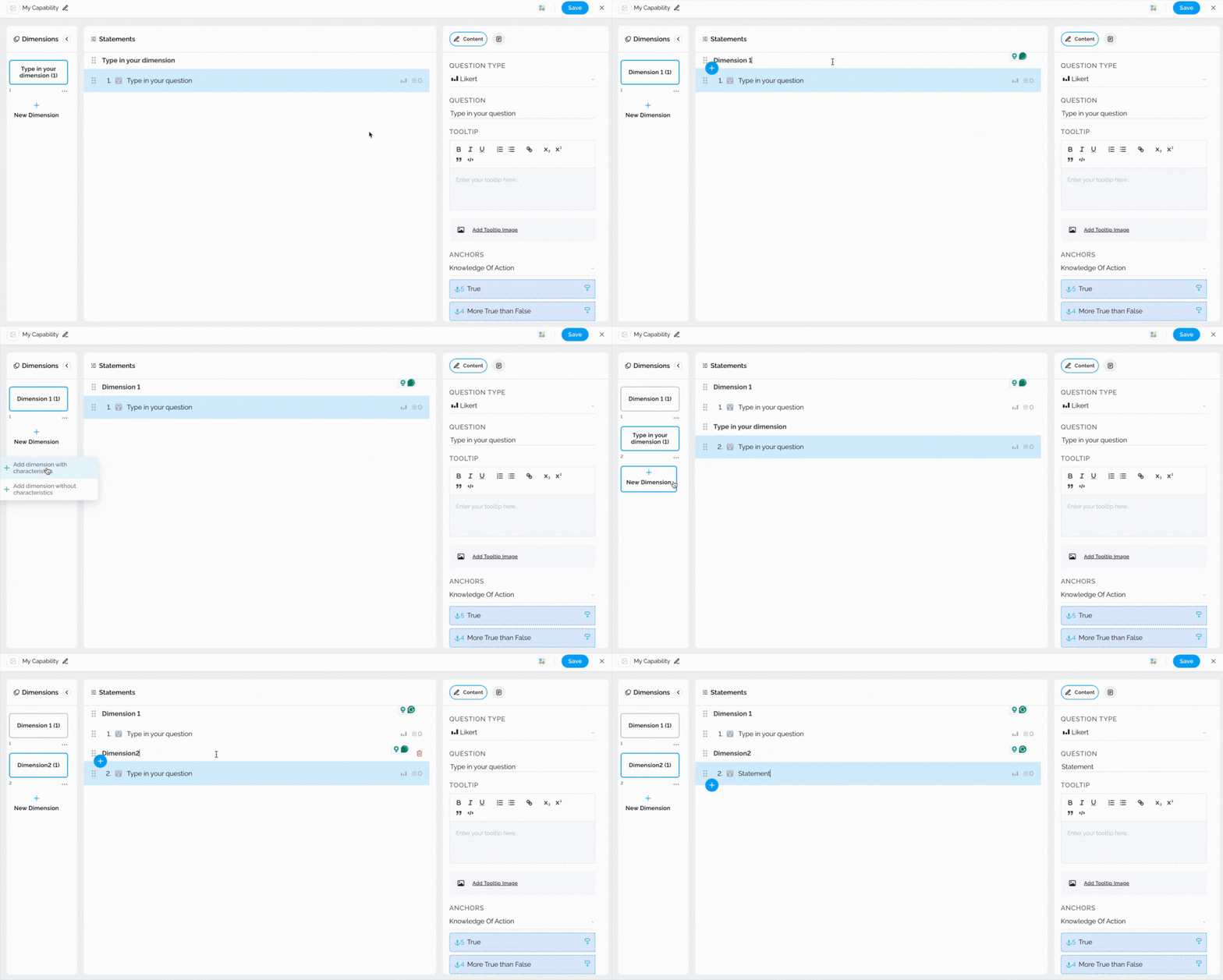
Once you open the Custom Capability Screen, a default dimension will appear. By selecting the Dimension field, you can type in the name of your dimension.
If you would like to add a new dimension, whether it is with or without characteristics, simply:
- Navigate to the sidebar on the left-hand side
- Click on New Dimension
- Proceed with naming it and adding statements
The short video below shows you how to add and rename your dimension
Note: You can always hide the Dimensions section by clicking on the arrow.
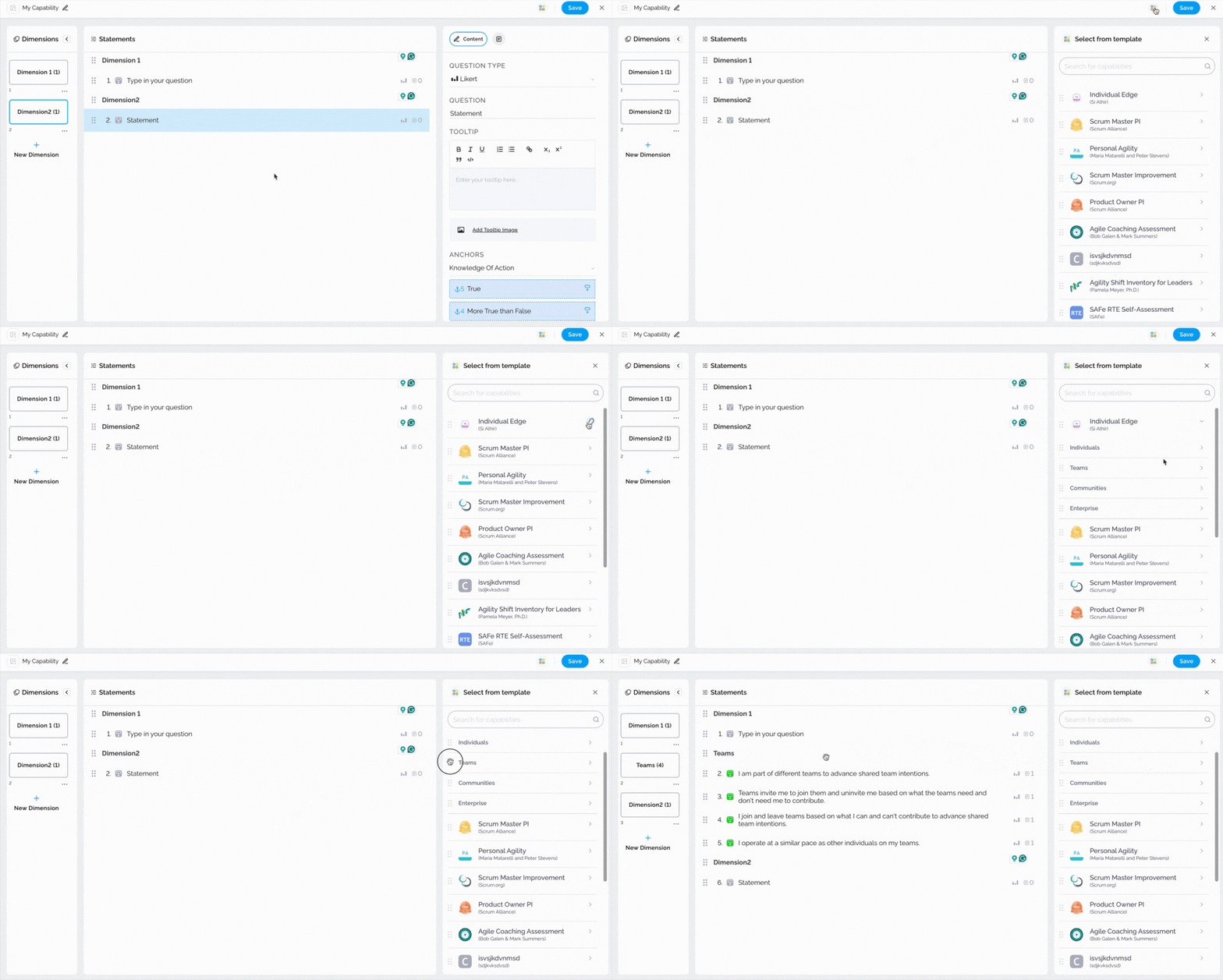
Comparative Agility gives you the ability to add dimensions from our genuine surveys:
- Open Genuine Surveys in the upper right corner
- Locate the desired survey
- Expand it to find the dimension that suits you best
- Drag & drop it to its most suitable place
In the short video below we show you how to add dimensions from genuine surveys
Statements
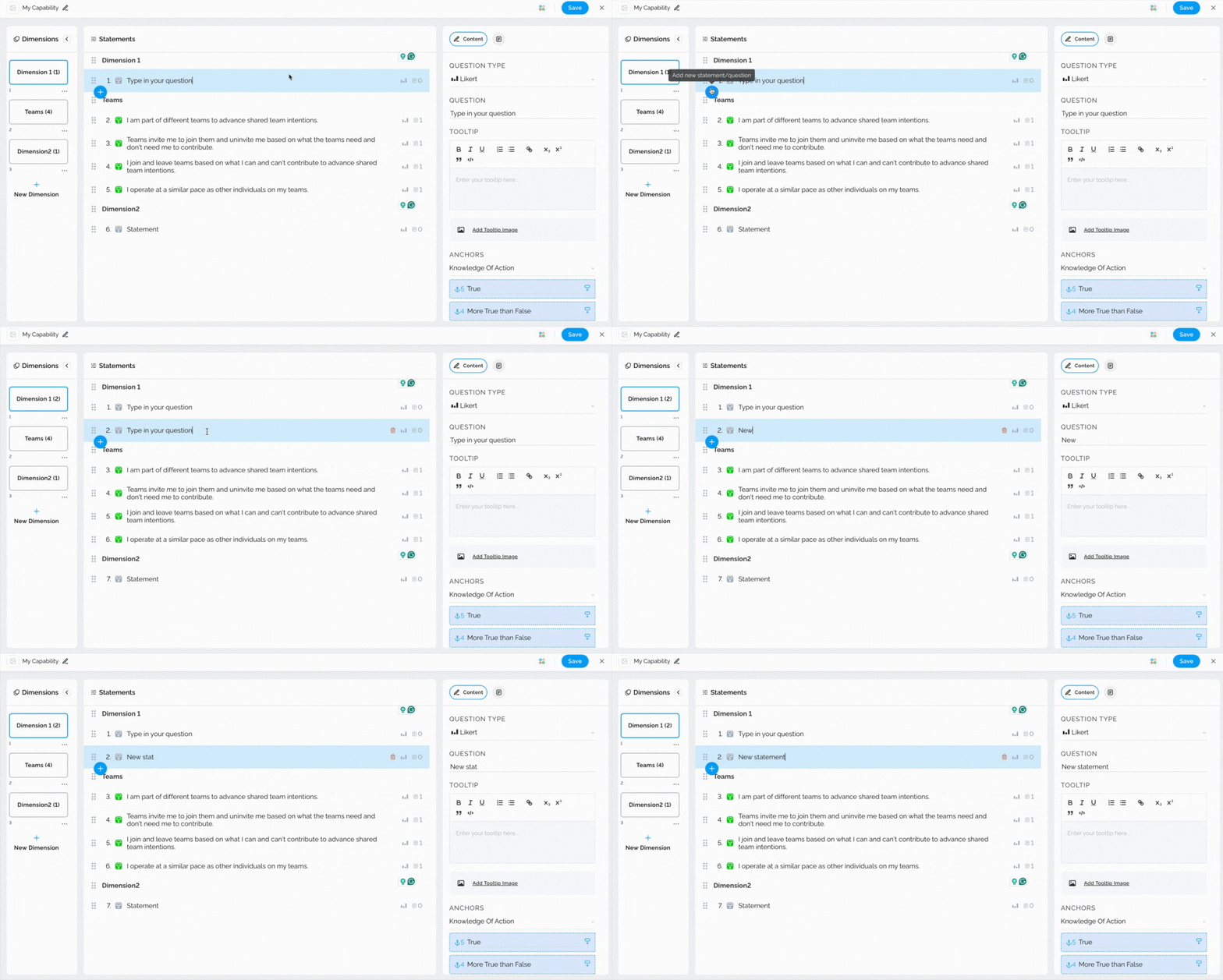
Clicking on the + icon gives you the option to create a new statement. After entering your statement, you will be presented with the same set of options available for all other statements, such as question type, tooltips, anchors, and recommendations. We will cover each of these later in the article.
The short video below shows you how to add a new statement
Question type
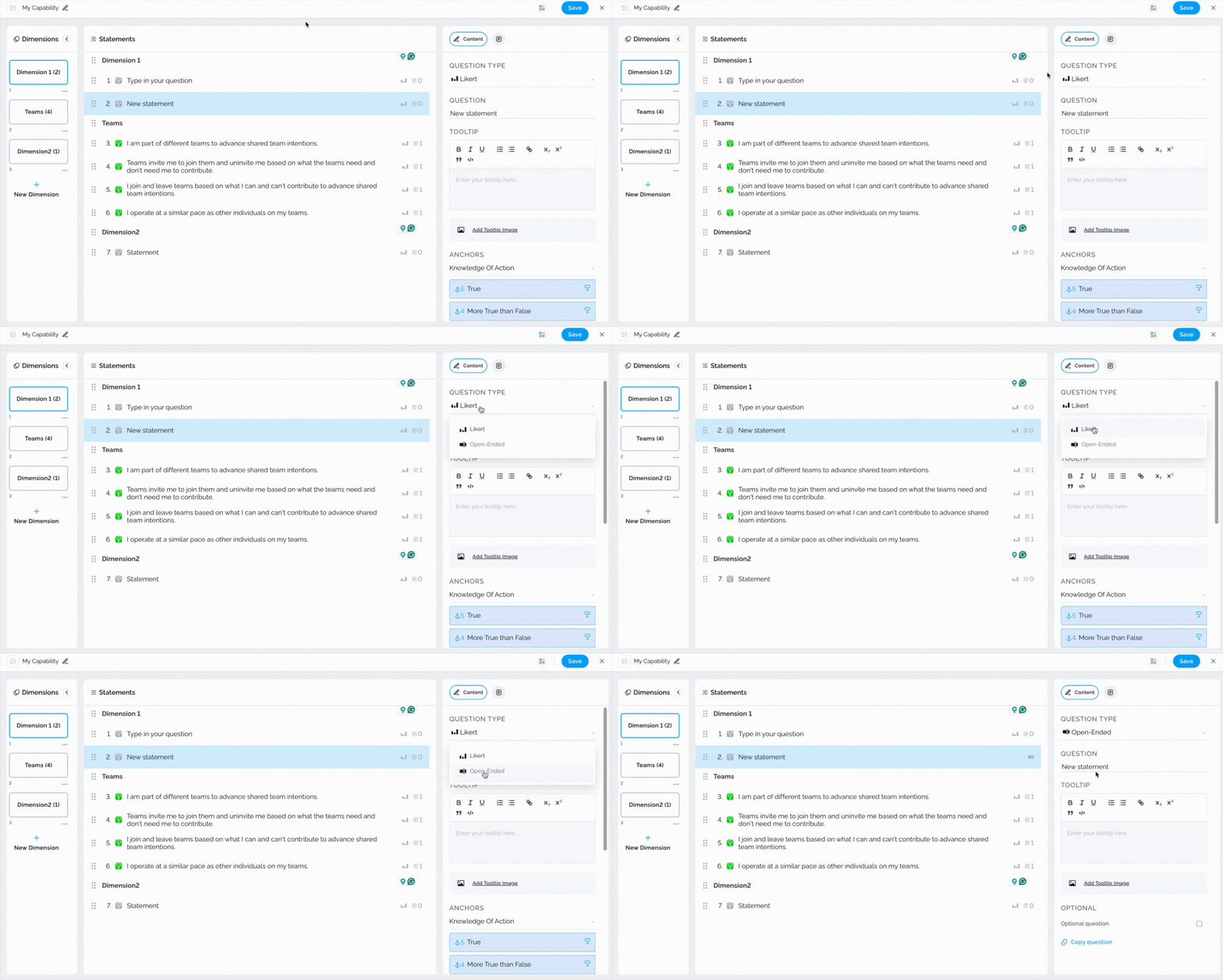
You can choose between the Likert and Open-ended question types. Based on your survey’s goals, you can use one question type throughout or mix and match different types across your survey. To change the question type, simply click the dropdown menu and select your preferred option.
In the short video below we show you how to change the question type
Tooltips
Tooltips can be utilized to provide additional information about statements to survey respondents, thereby enabling them to answer questions more accurately. To add a tooltip, simply select the statement and type in the necessary information on the right-hand side.
The short video below shows you how to add tooltips
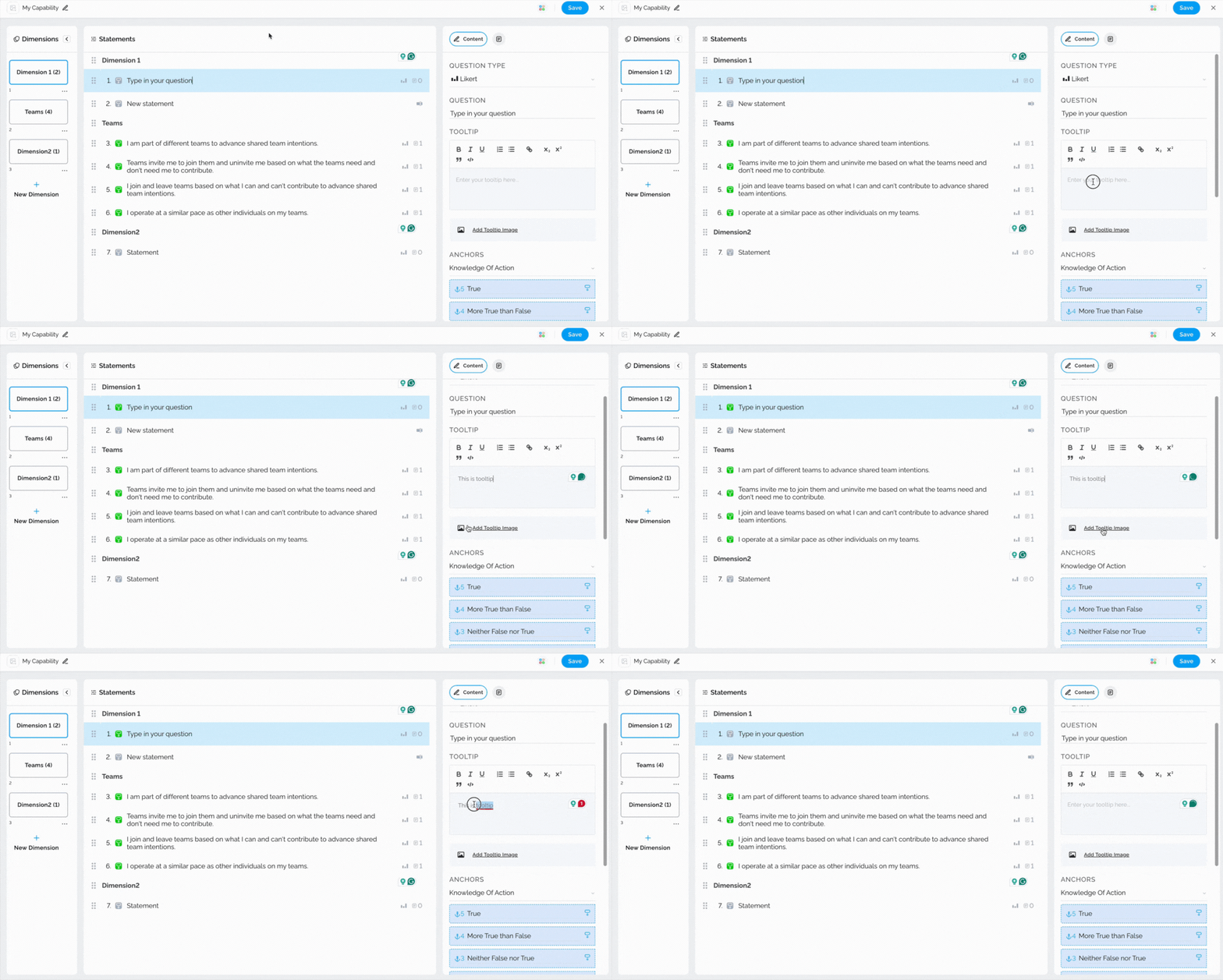
Note: You can easily upload an image or delete the tooltip altogether.
Anchors
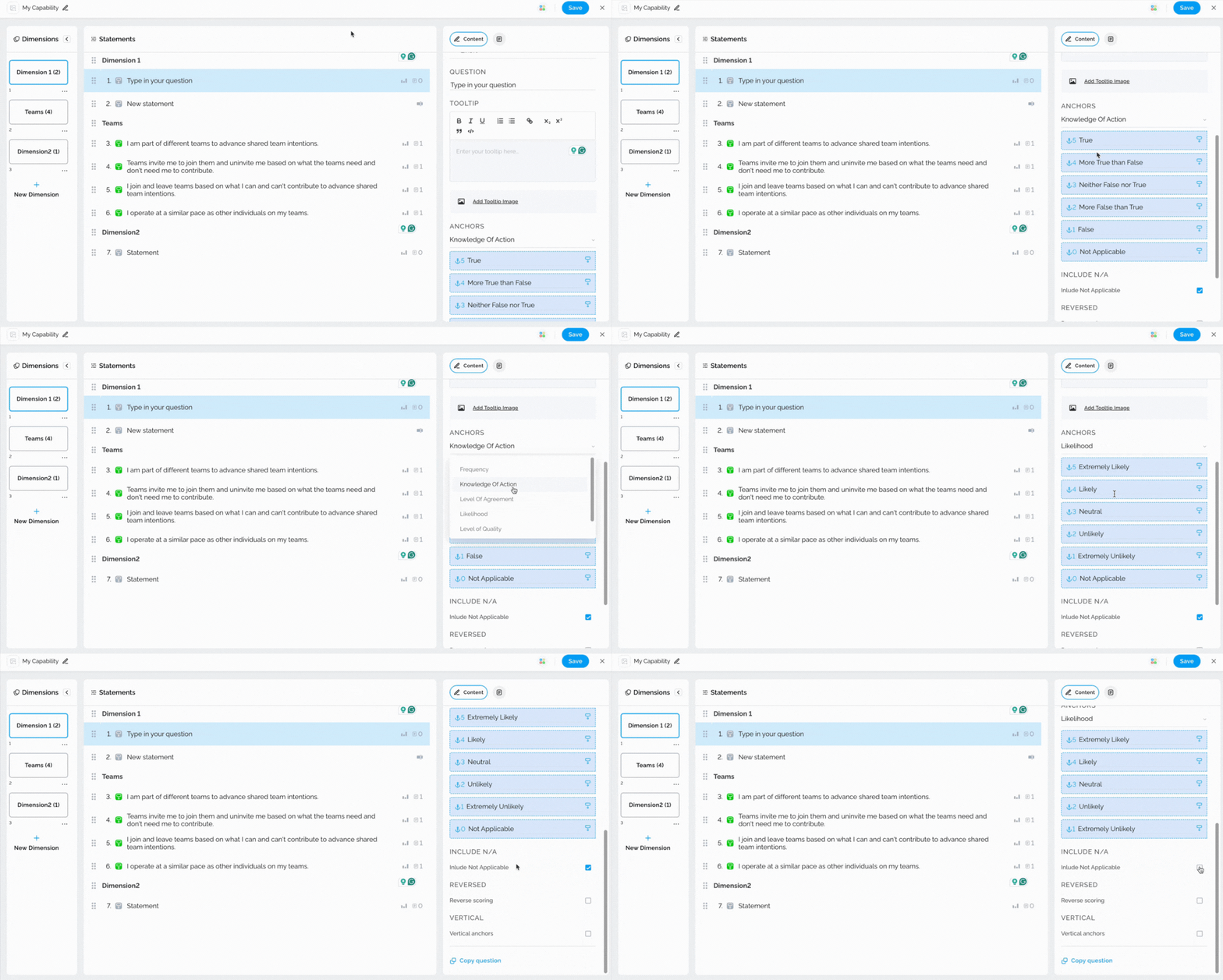
With the Anchors option, you will be able to modify the statement’s possible responses. You can select from predefined responses or add your own custom response. Additionally, this option allows you to enable or disable the ‘Not Applicable‘ choice, which is commonly used in our standard surveys.
In the short video below we show you where to find the anchors
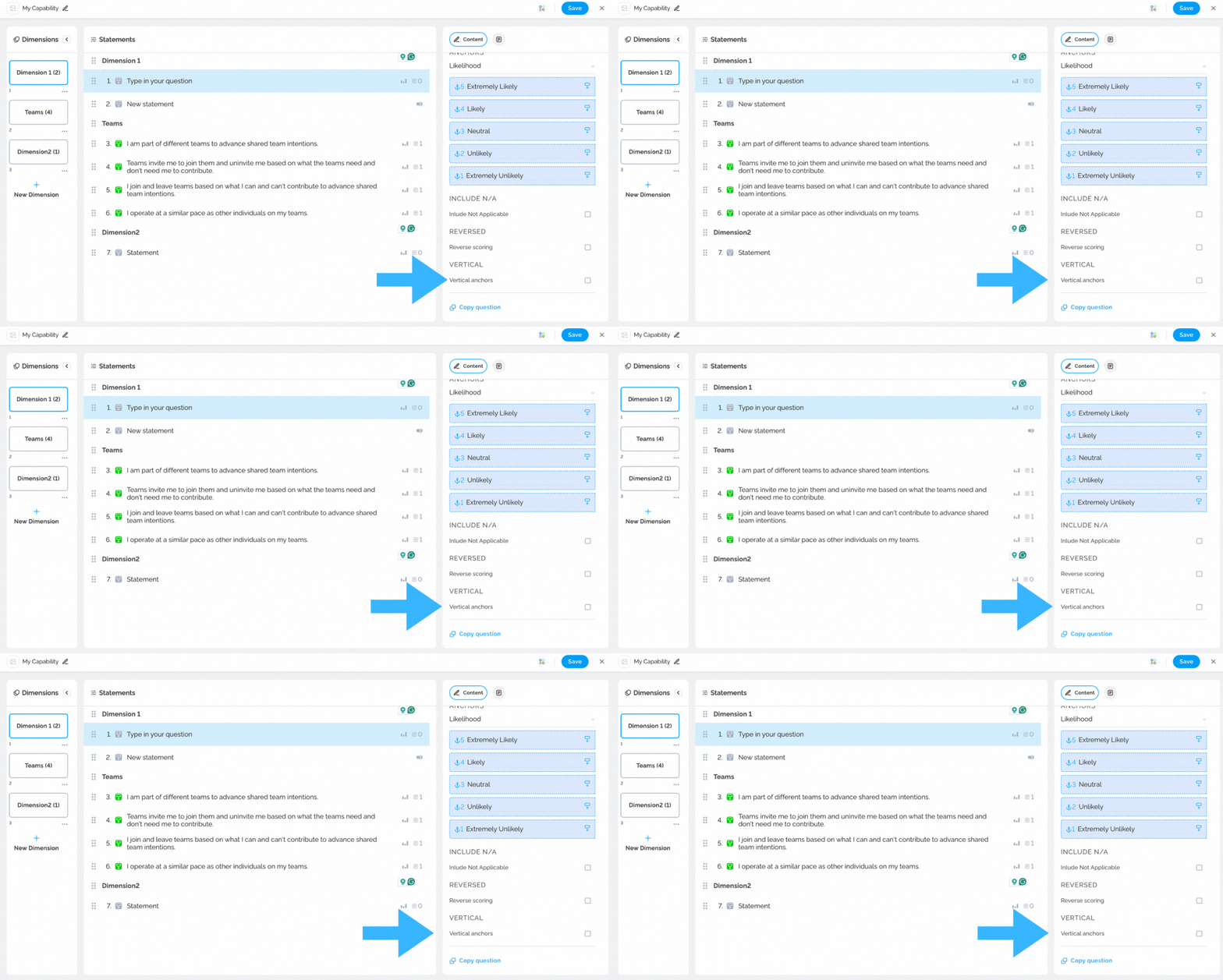
Reversed scoring reverses the scores assigned to each response option so that the highest score corresponds to the most negative response and the lowest score corresponds to the most positive response.
The screenshot below shows you where to find the reversed scoring option
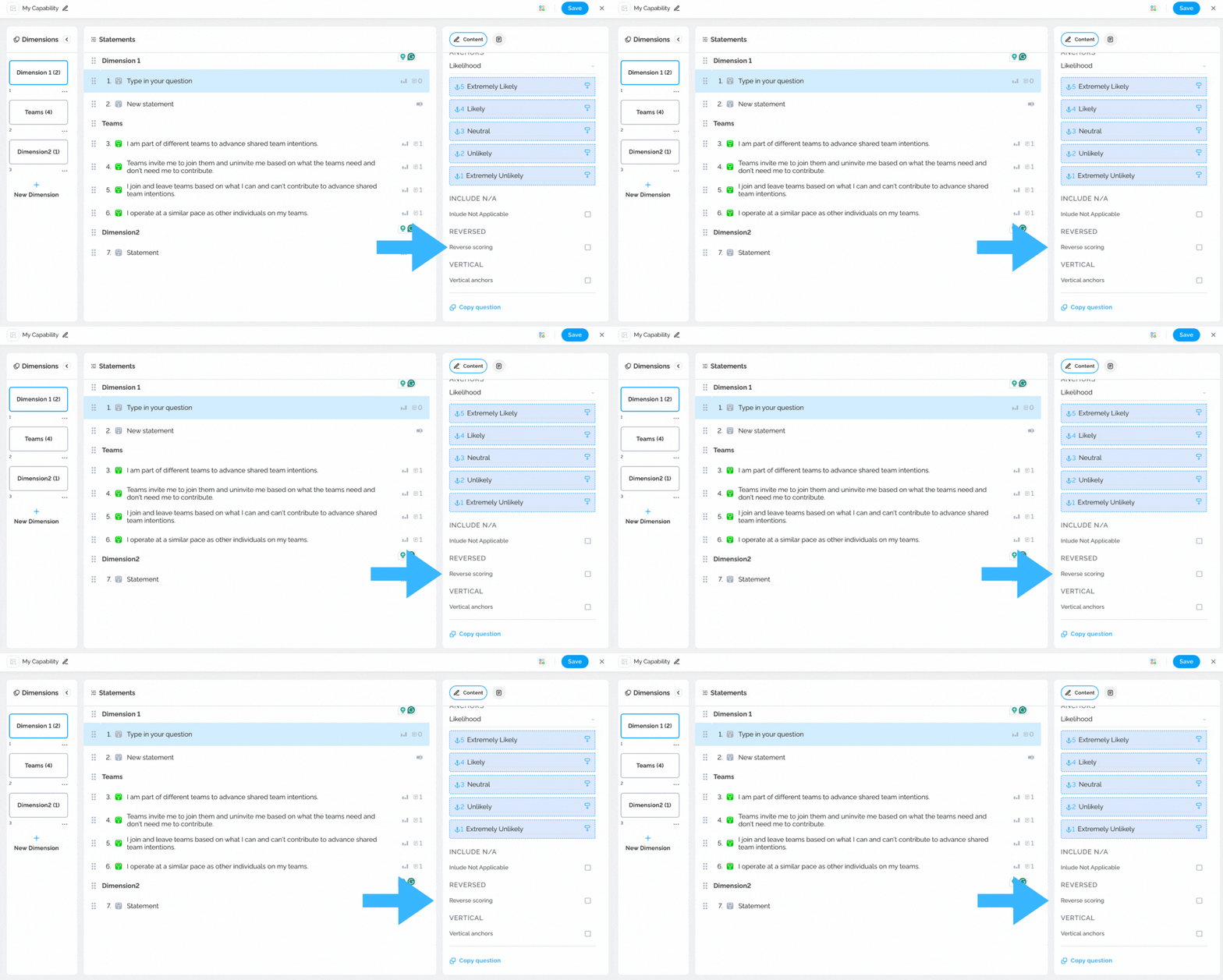
Note: If you would like responses to appear vertical, proceed with enabling the option on the right-hand side.
In the short video below we show you where to find the reversed scoring option
Copy and Paste statements
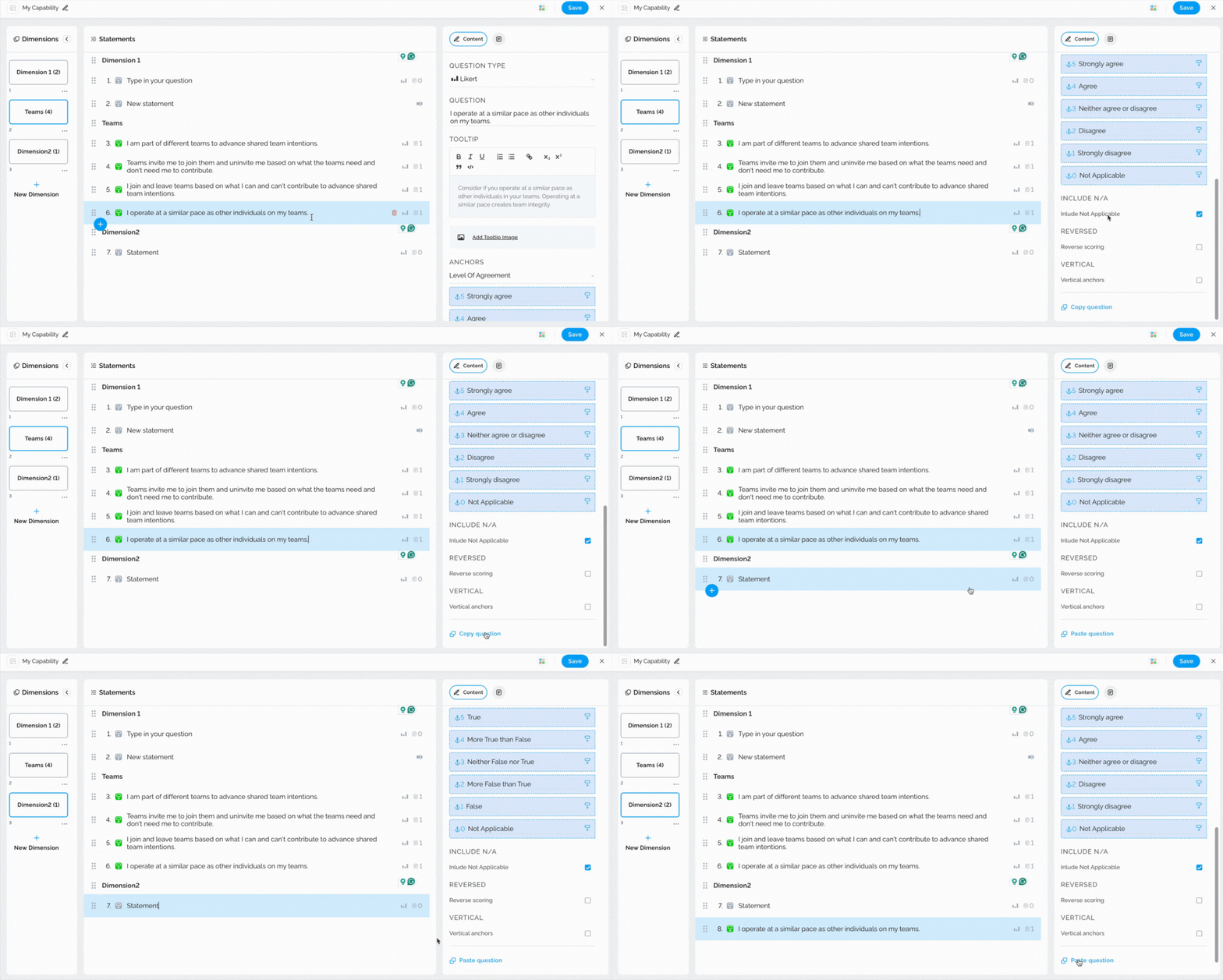
If you would like to copy and paste an already existing statement, simply select the statement, click on the Copy Question option, select the statement under which you would like to paste the copied one, and proceed with the Paste Question option.
The short video below shows you how to copy/paste the statements
Recommendations
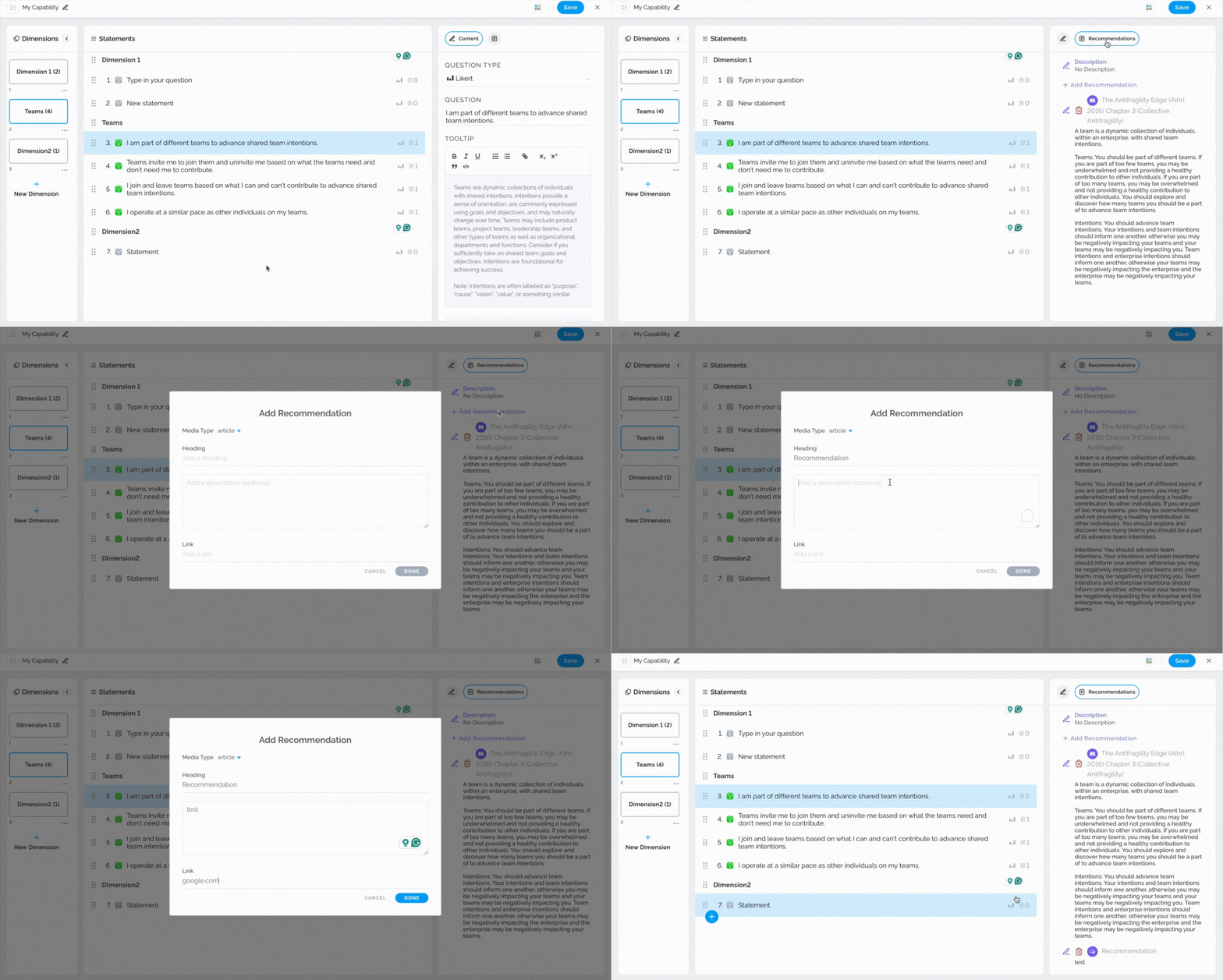
This option will allow you to see current and create new recommendations. Select the statement and open the Recommendations tab to use this option.
In the short video below we show you how to use the recommendation option
Delete Dimensions/Statements
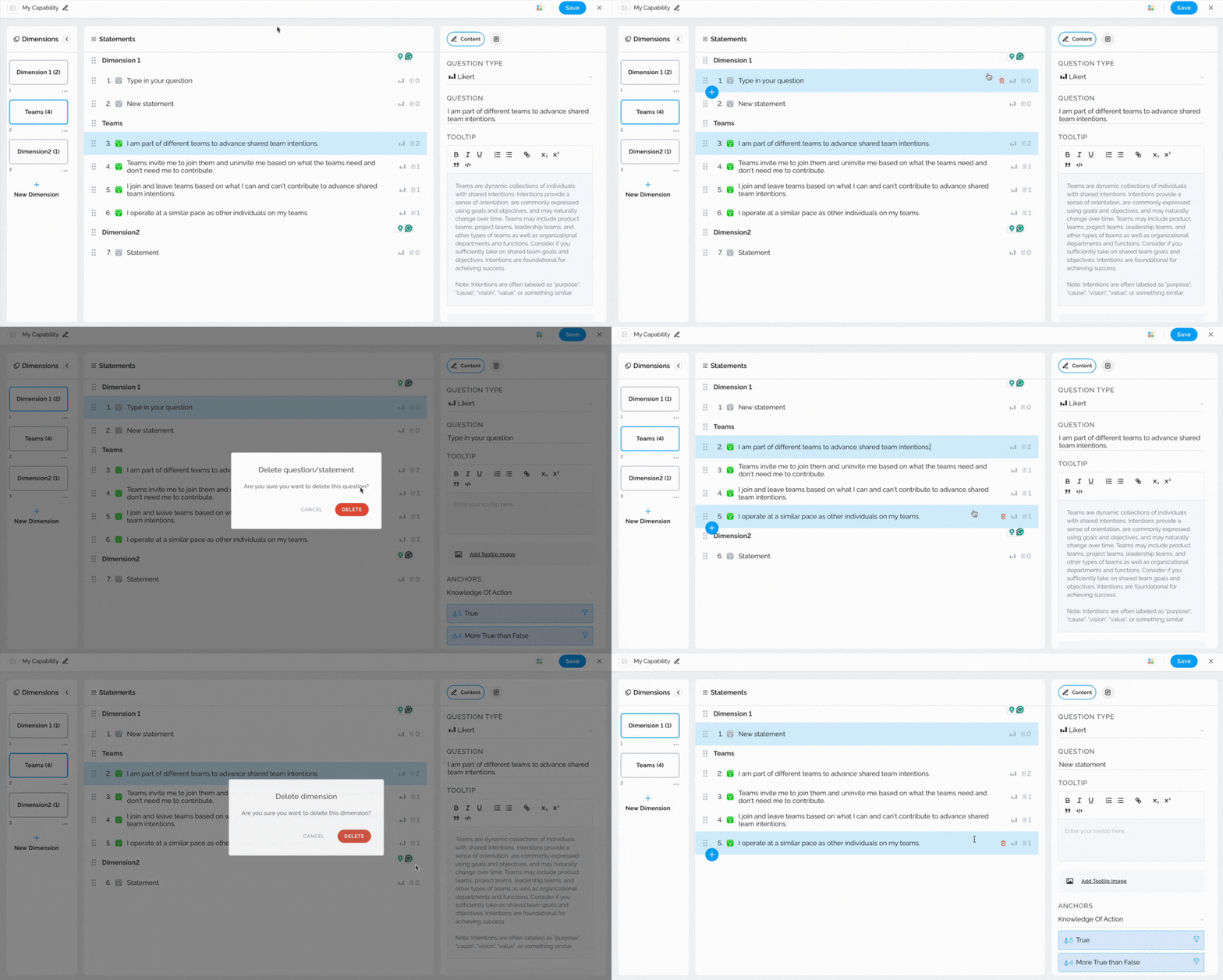
To delete a dimension/statement, navigate to the desired dimension/statement and click on the Delete button.
The short video below shows you how to delete dimensions/statements
If you ever need any assistance or have any questions please reach out to our support team at support@comparativeagility.com and we will be more than happy to assist you.