
This article will walk you through the 360-degree feedback report. Feedback 360 is a process that gathers input from managers, peers, and direct reports to provide a well-rounded view of an employee’s performance and development needs.
Navigating to the Report
- Open the survey tab
- Navigate to the View Report button
In the short video below we show you how to open a report

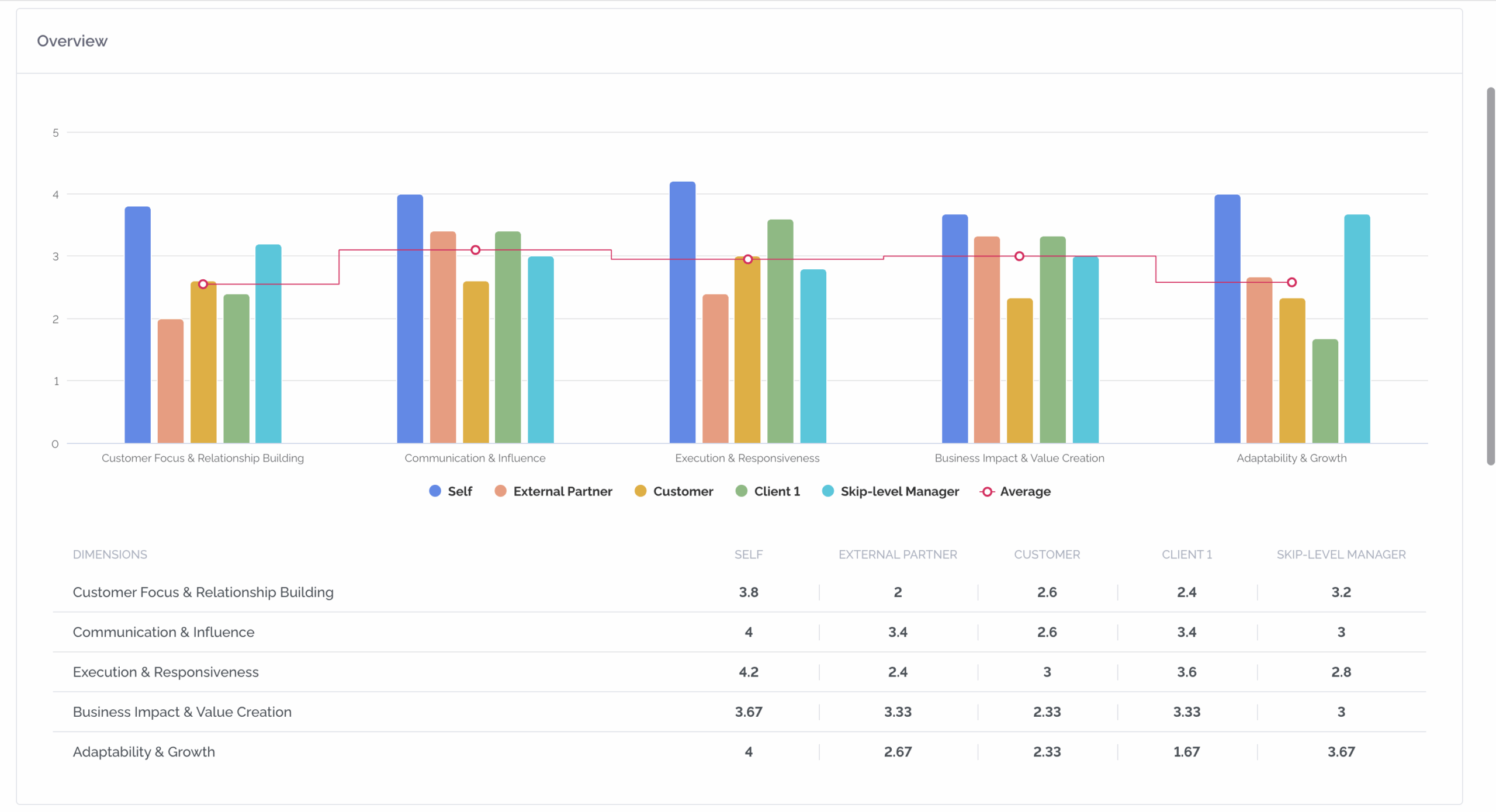
Overview
The overview provides dimensions and averages for each role that took the survey. Open the dimensions for further details.
The screenshot below shows you the overview
Insights tab
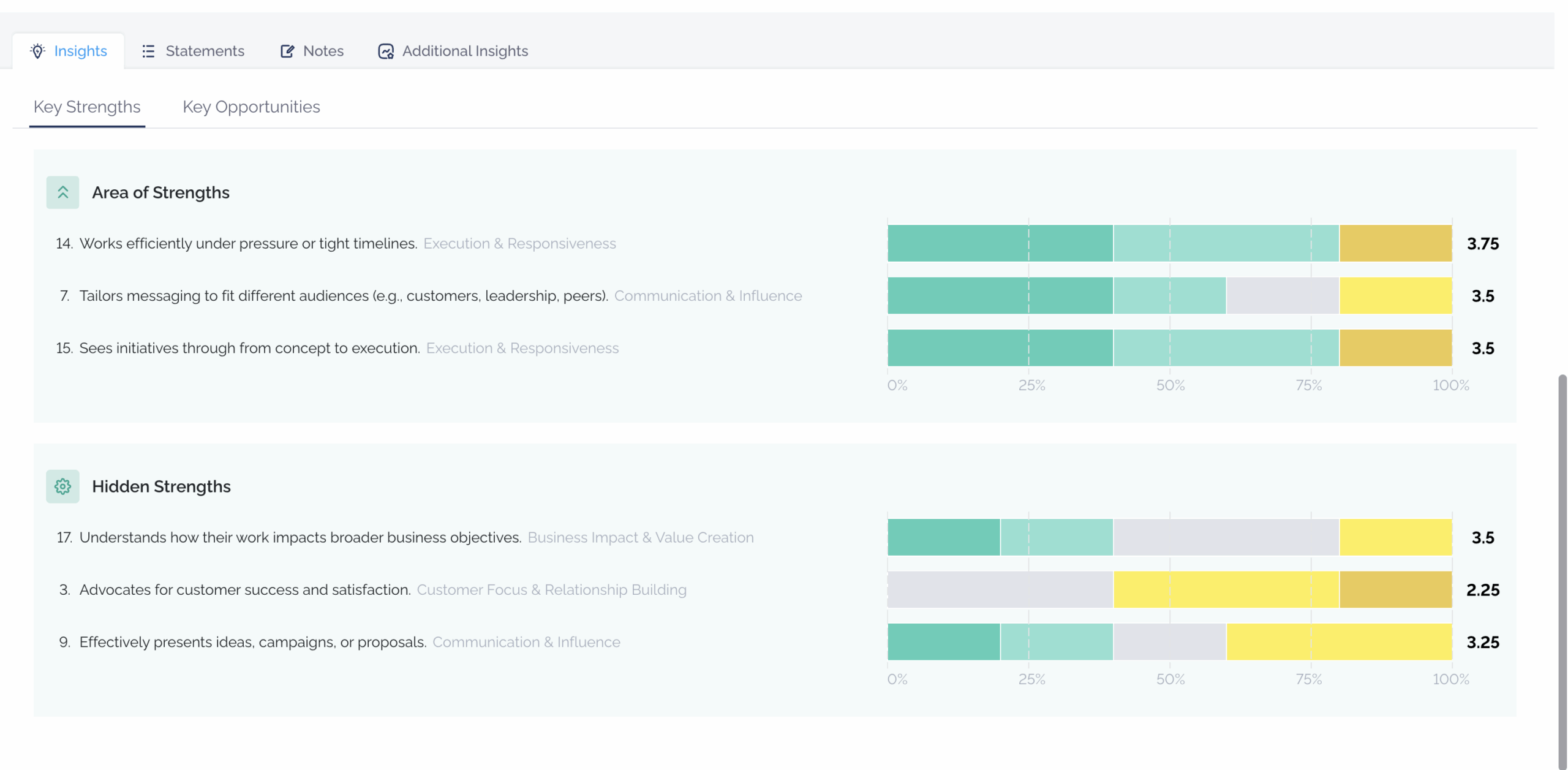
The insights tab gives you the information about your Key Strengths and Key Opportunities. Dive deeper into the results and see how people responded.
Area of Strengths summarizes the competency areas where you received the highest feedback scores. It reflects how your strengths are perceived across different roles and relationships in your organization.
Hidden Strengths shows areas where others rated you highly, but you rated yourself lower. These may be strengths you underestimate—insights that can boost your self-awareness and confidence.
In the screenshot below we show you the key strengths tab
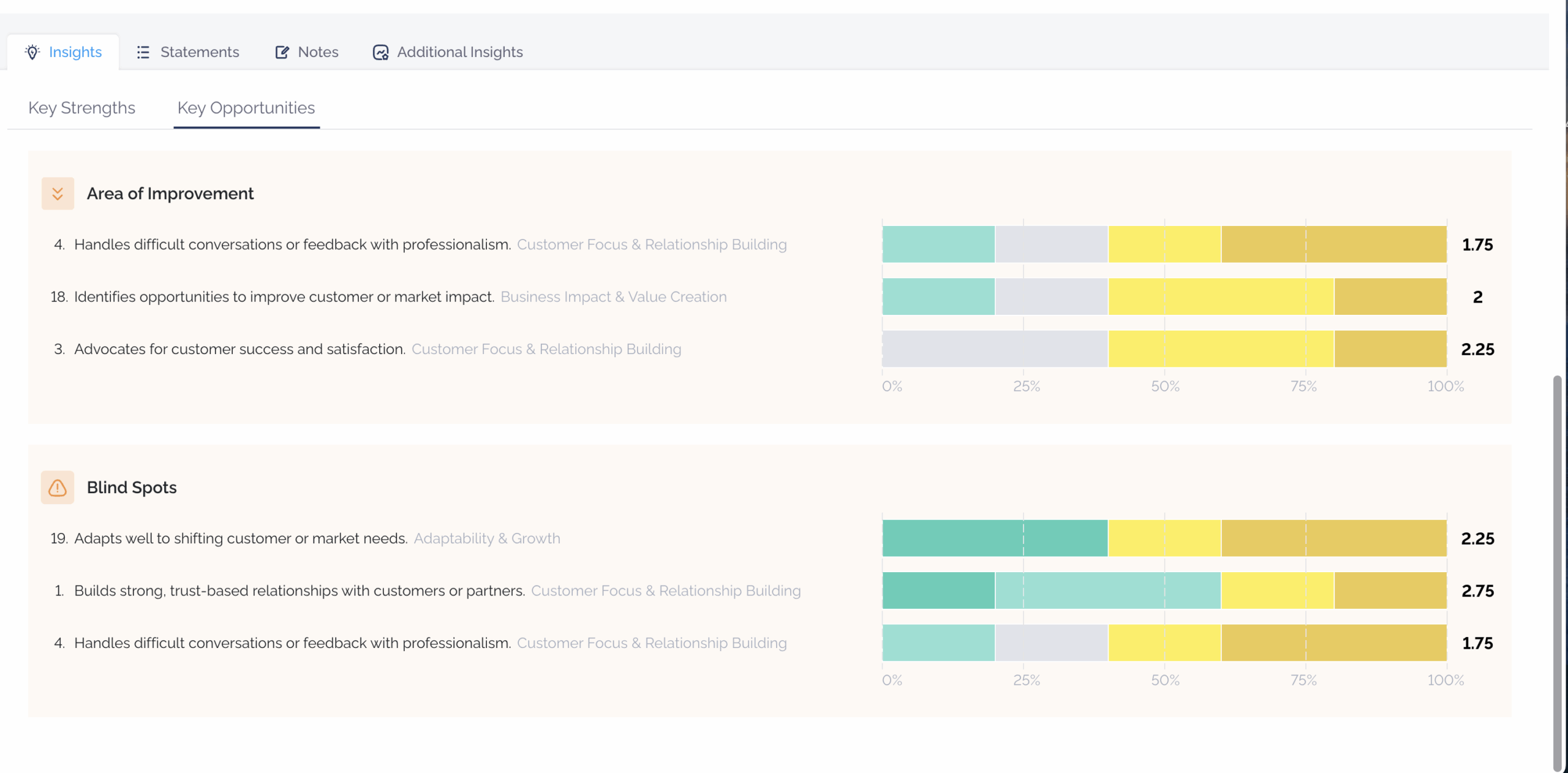
Areas of Improvement highlight the competency areas where feedback suggests room for growth. Use it to identify patterns and opportunities to enhance your impact across roles and relationships.
Blind Spots highlights areas where you rated yourself higher than others did. These gaps in perception can point to behaviors or skills that may need attention or clearer communication.
The screenshot below shows you the key opportunities tab
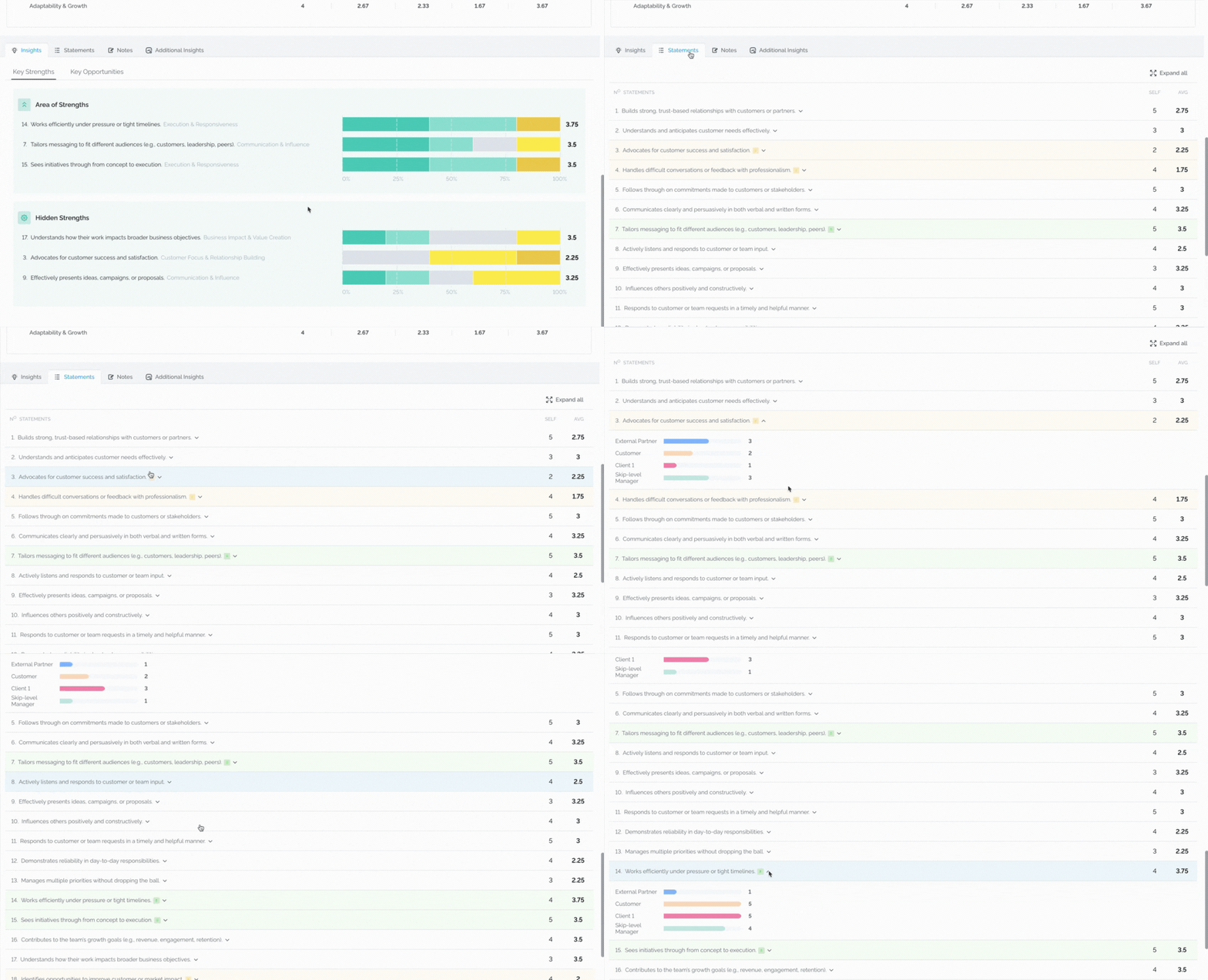
Statements
Under the statements tab, we list all the statements from the survey with their averages, based on the results. You will be able to see Key Strengths and Key Opportunities highlighted. By expanding each statement, you will be able to see how each role responded.
In the video below we show you the statements tab
Notes
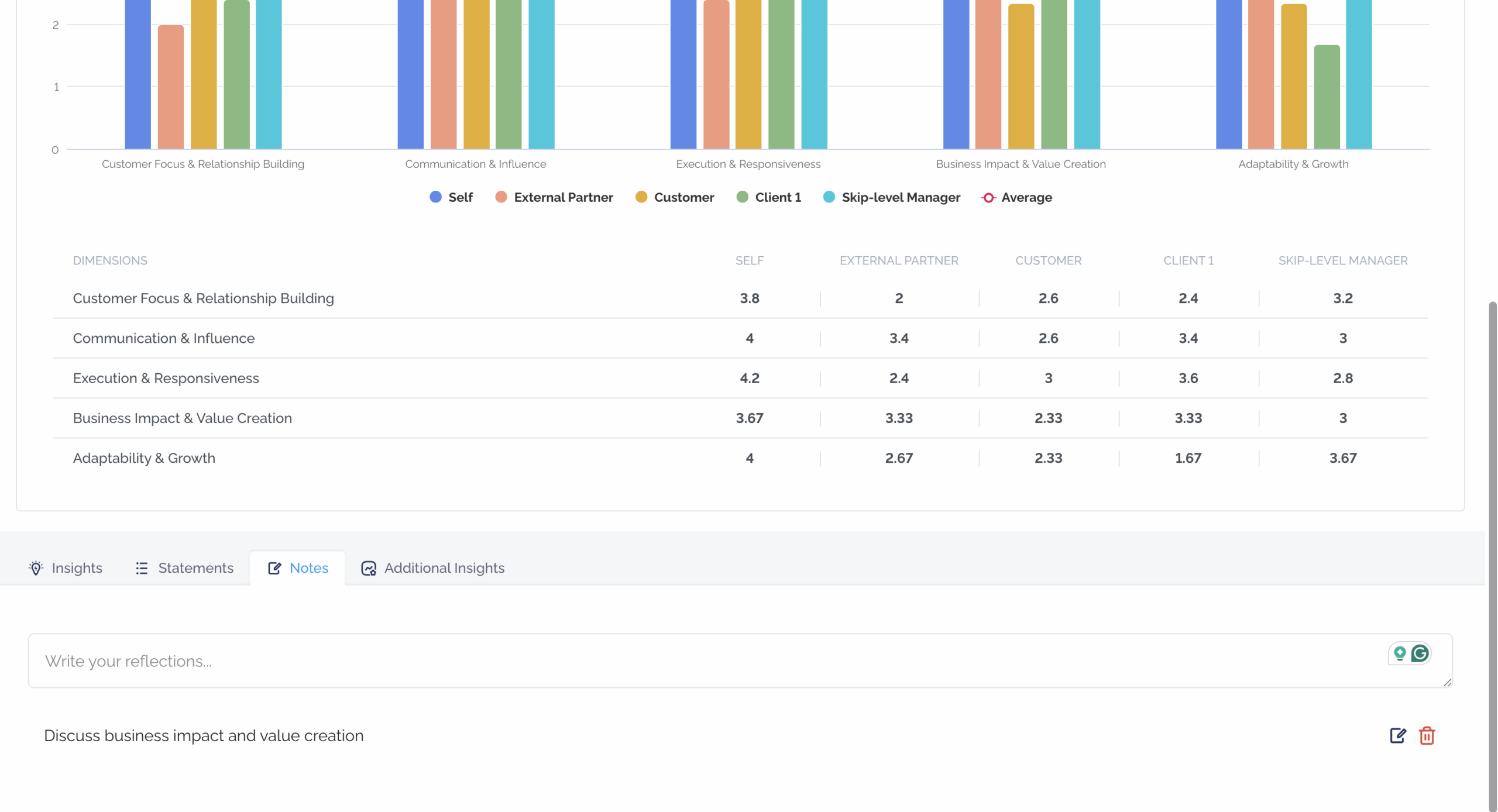
Reflections are related to a particular report and are usually used to identify opportunities for improvement.
The screenshot below shows you where to find the notes tab
Additional insights
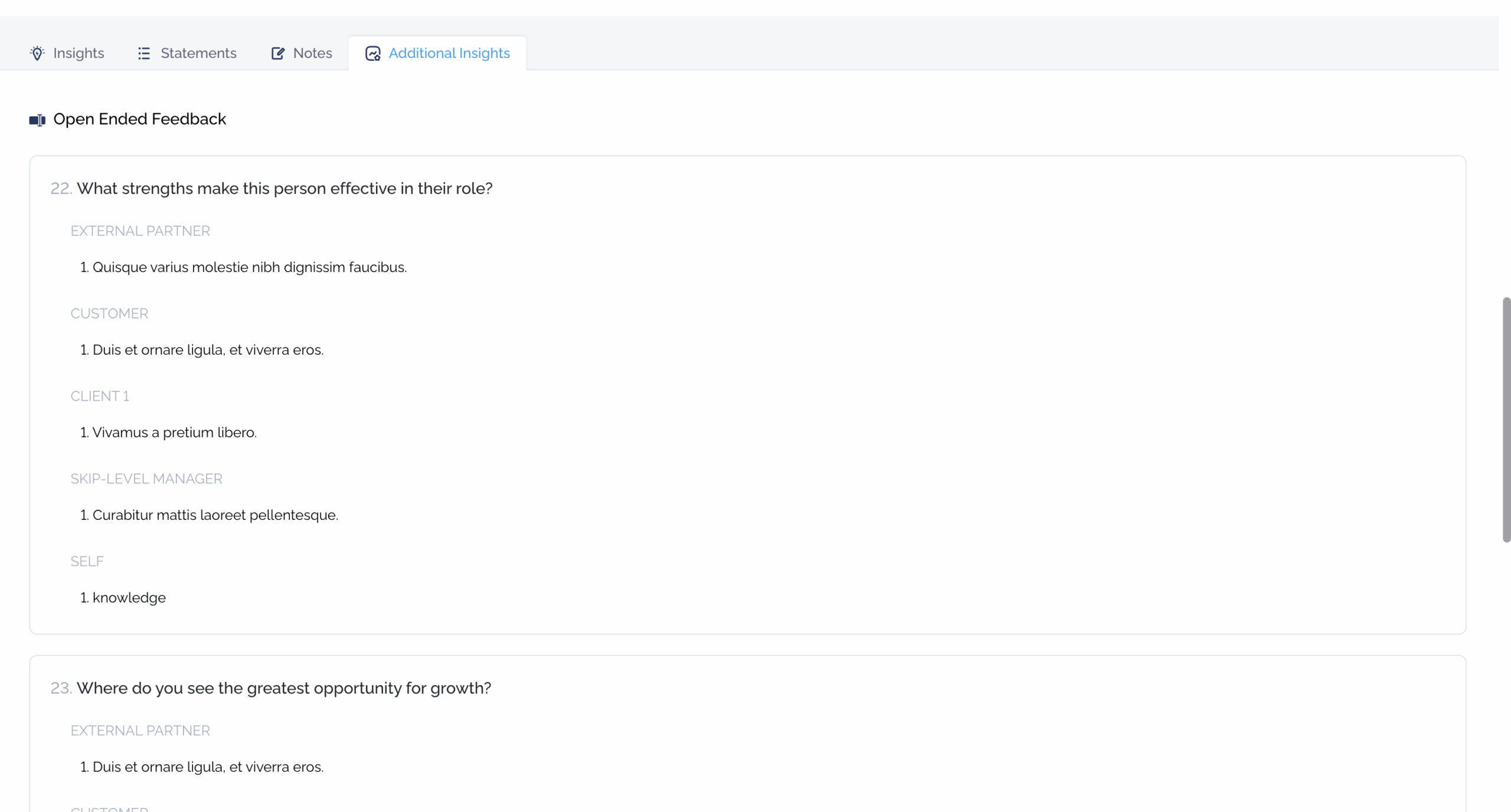
This tab will show all the comments people left while taking the survey.
In the screenshot below we show you the additional insights tab
Options
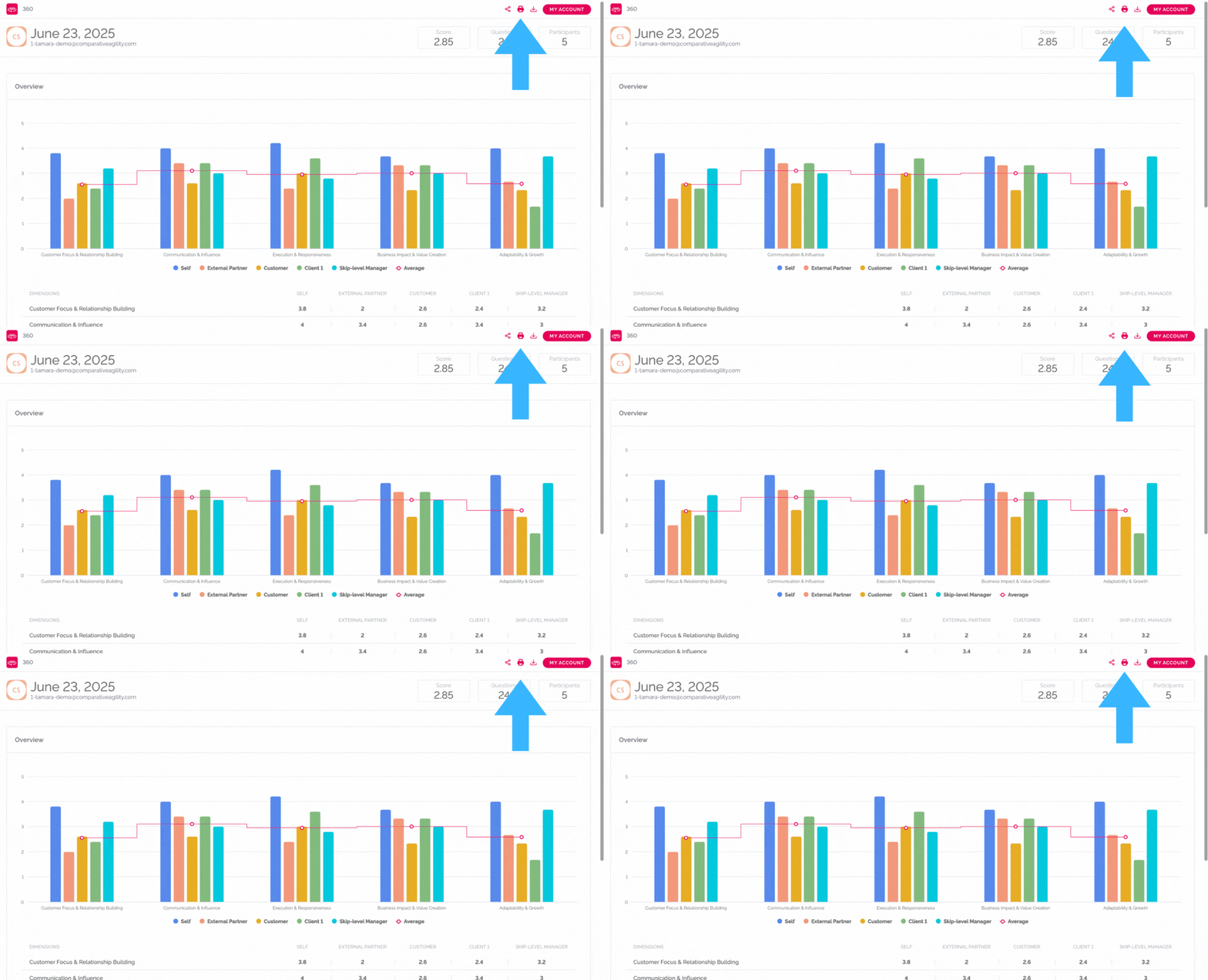
Last but not least, you have the ability to export the report as CSV and Excel, print it, save it as a PDF, and share the report with others.
The screenshot below will show you where to find these options
If you have any questions or need assistance, don’t hesitate to reach out to our support team at support@comparativeagility.com and we will be more than happy to help you.