
This article will guide you through sending out 360 surveys by using the Invite by email option. Feedback 360 is a process that gathers input from managers, peers, and direct reports to provide a well-rounded view of an employee’s performance and development needs.
Initiating the survey
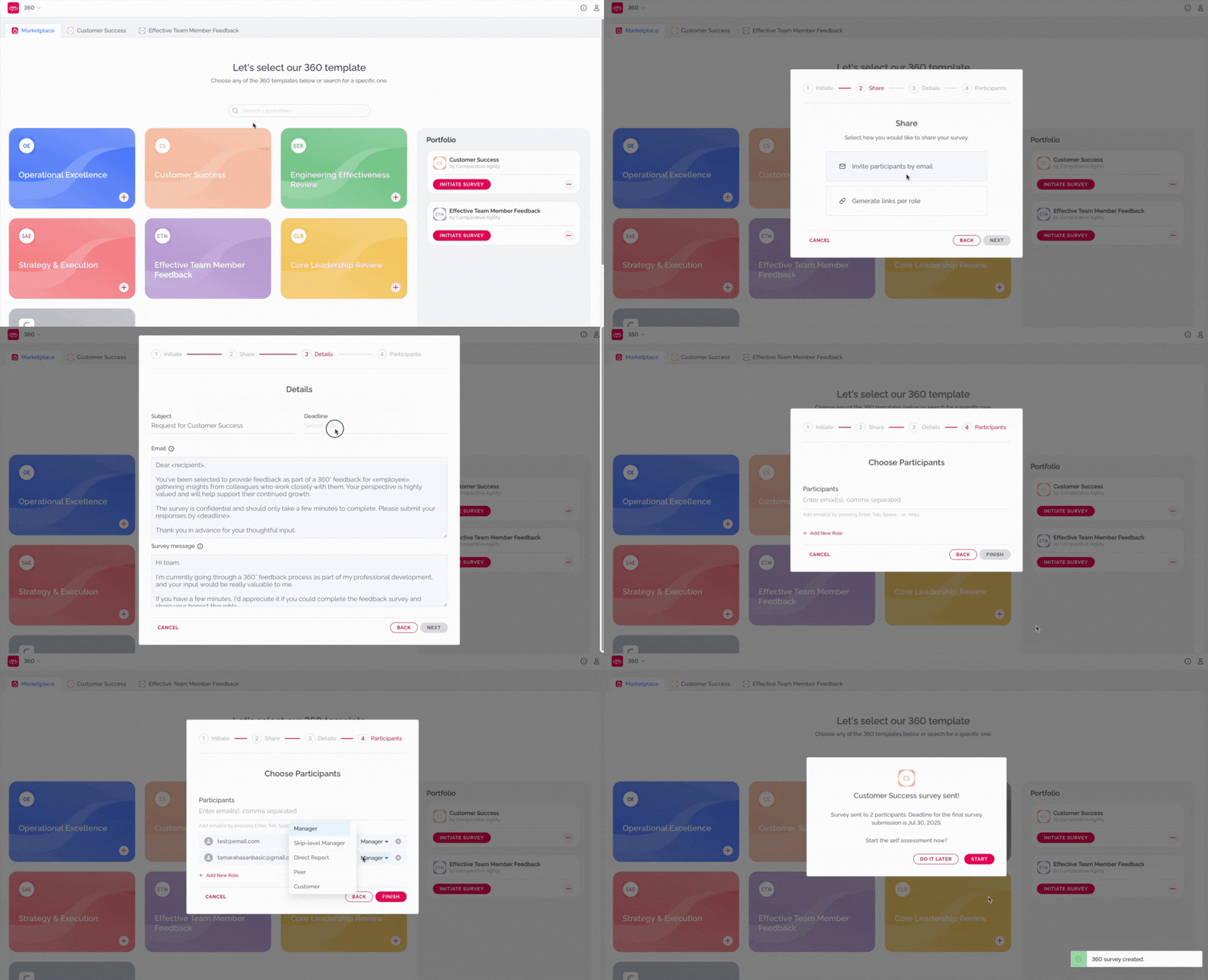
To start with the process of gathering feedback, simply:
- Click on the Initiate Survey
- Either Preview Questions or click on Next
- Choose the Invite by email option
- Select the deadline
- Add participants’ emails and roles
- Proceed with the Finish option
In the short video below we show you how to use the email option
Add participants
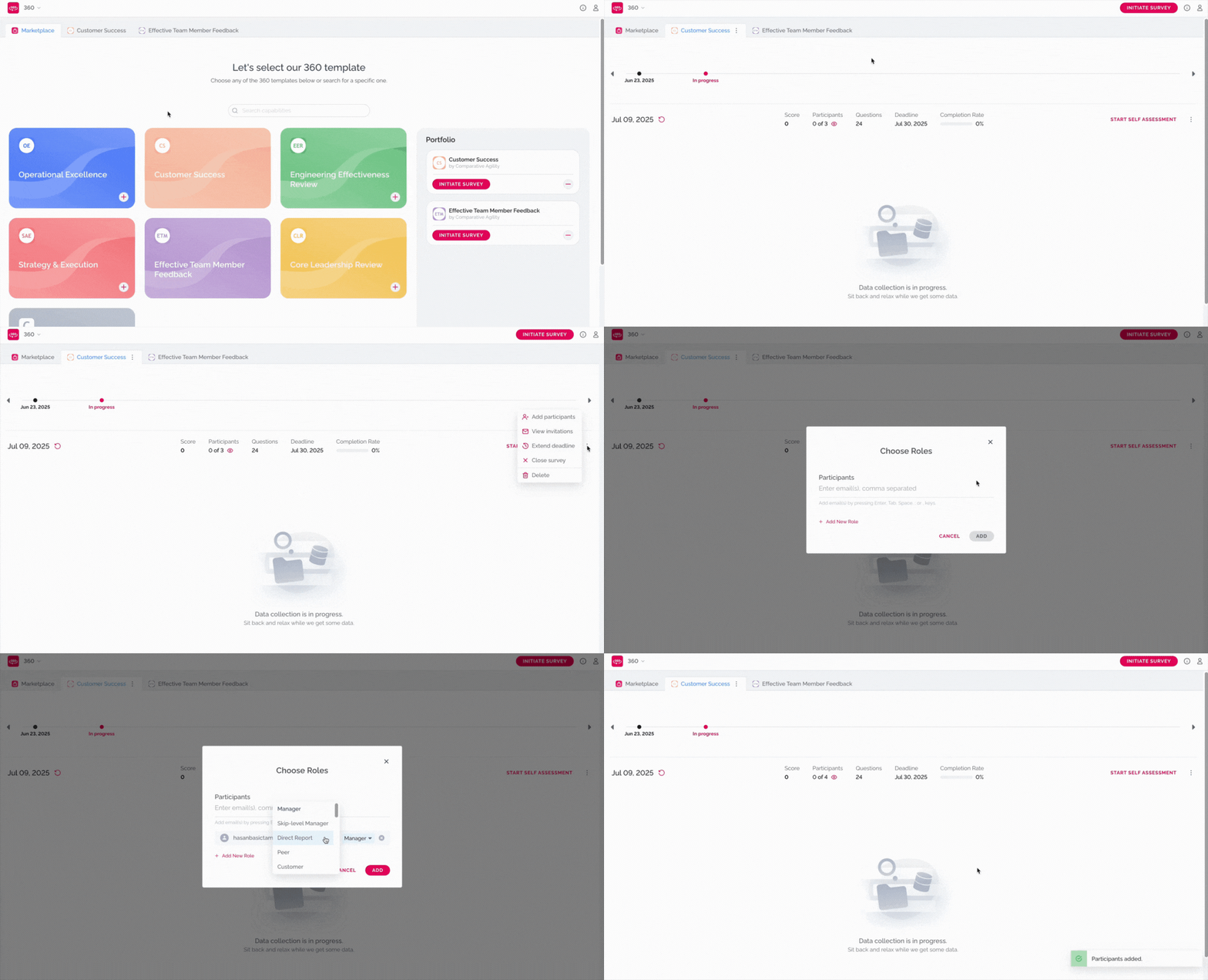
If you would like to add new participants and send them email invites, simply:
- Open the survey tab
- Click on the three dots
- Select Add participants
- Type in the emails and choose their roles
- Click on Add
The short video below shows you how to add new participants
Invitations
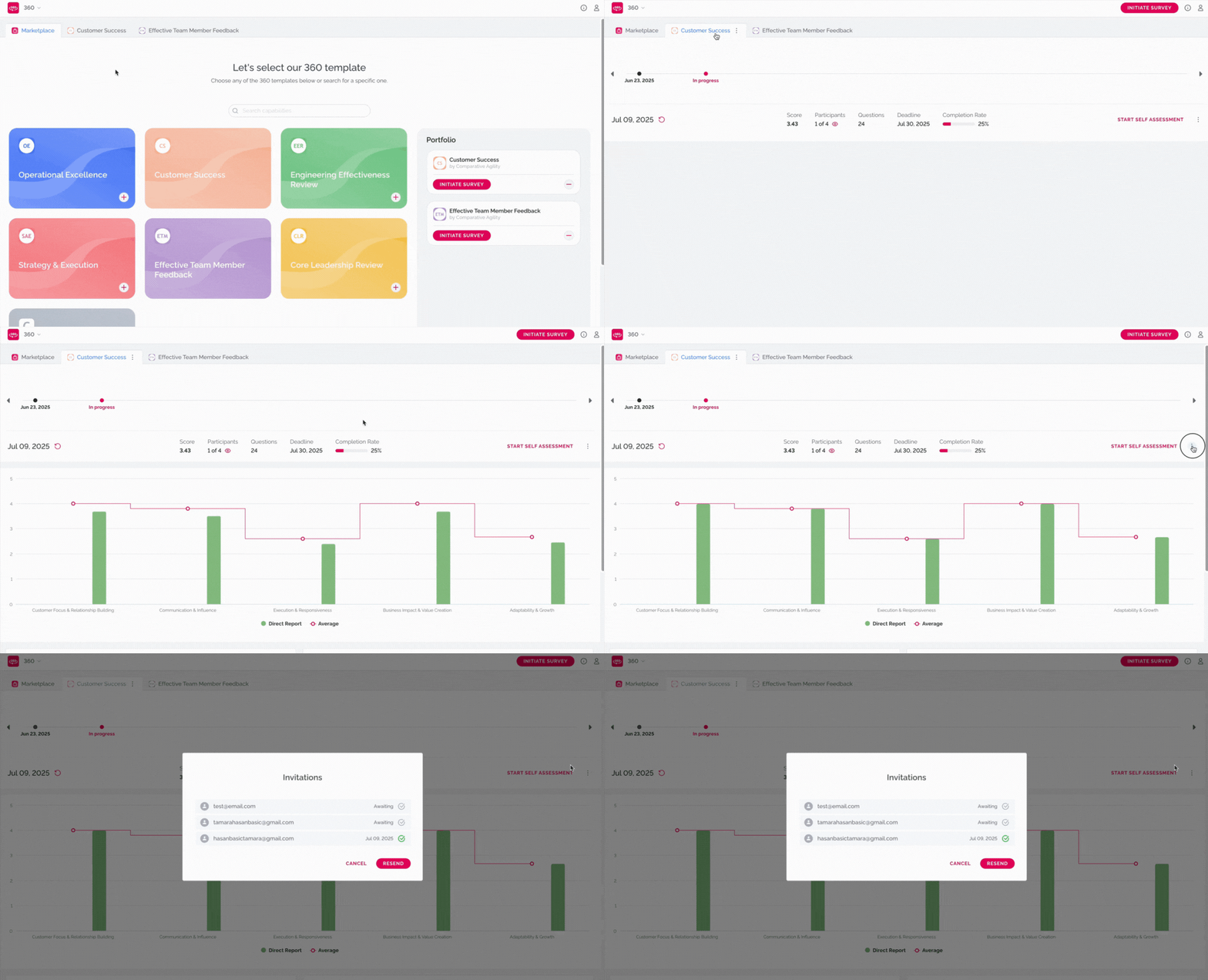
Comparative Agility gives you the ability to see all the invitations you sent, as well as whether someone has already responded.
- Open the survey tab
- Click on the three dots
- Select View Invitations
In the short video below we show you how to see the invitations you sent
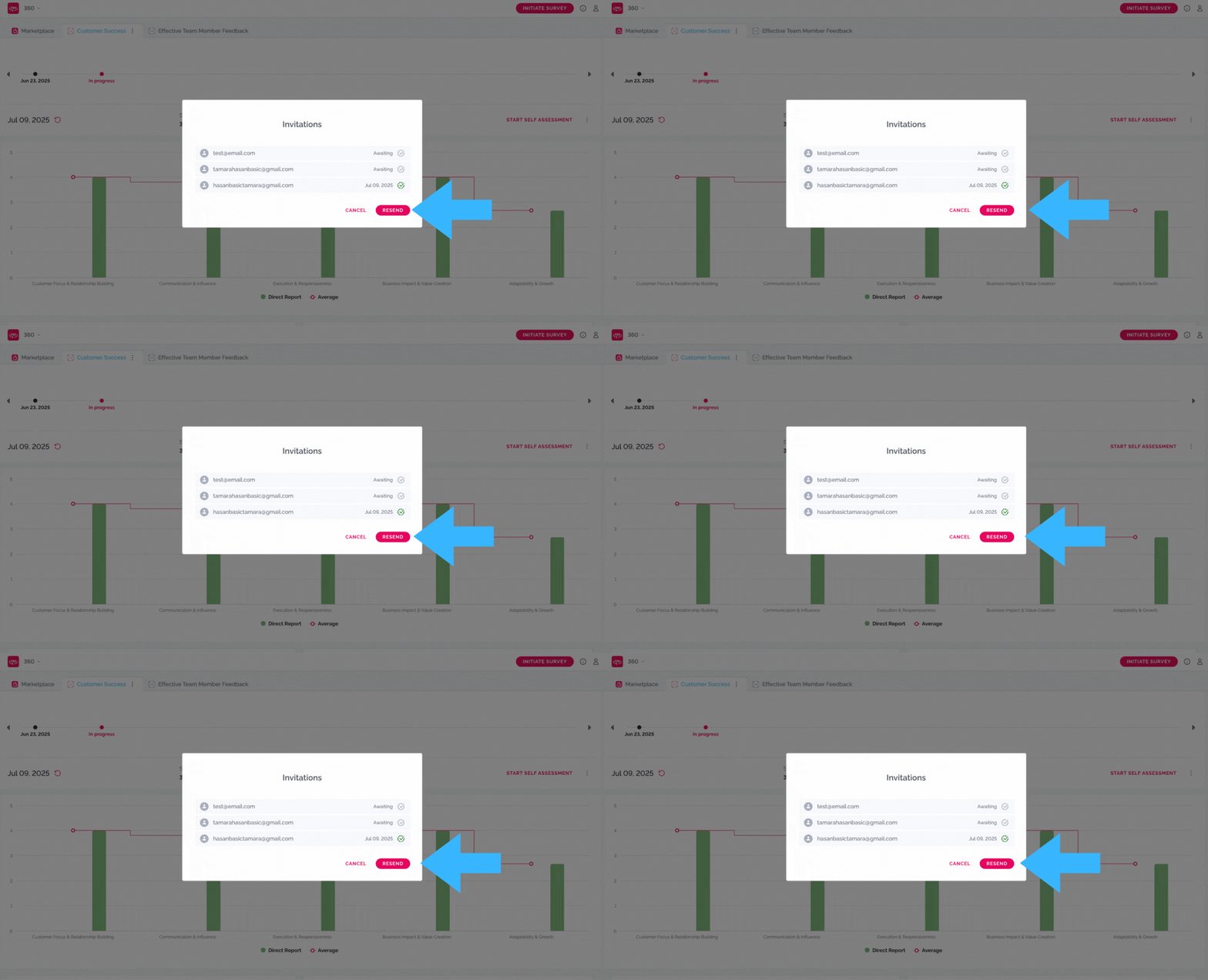
Note: You have the option to resend the invitations if needed.
The screenshot below shows you where to find the resend option
To learn more about the 360 feature, please visit our Help Center article Feedback 360.
If you have any questions or need assistance, don’t hesitate to reach out to our support team at support@comparativeagility.com and we will be more than happy to help you.